Getting Started3 / 6
Image Editing Tool
Read Other Guides
A Free Image Editing Tool
“I've picked my photo, but it might be a little dark...”
“I want to remove a person in the background or my dog's leash!”
“I want my photo to look more like a work of art.”
That's where our image editing tool, Paint Yours Studio, comes in ✨
Paint Yours Studio is our image editing tool for editing and adjusting your photos.
It's free to use, and you can choose between two output styles, Photo and Illustration, to get the look you like.
What you can do with image editing
☀️ Adjust brightness and color
Brighten dark photos or make colors more vivid.
🪄 Remove unwanted objects
Remove anything you don't want in your artwork, like a person in the background or your dog's leash.
🌷 Change the background to any scene you like
You can remove the background or replace it with a different scene.
For example, put your dog in a field of flowers and create your ideal picture.
🖼️ Turn your photo into an illustration
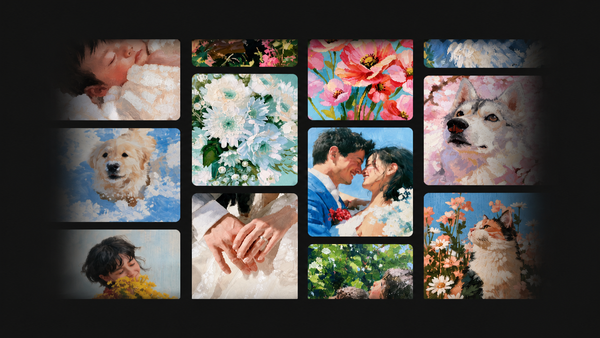
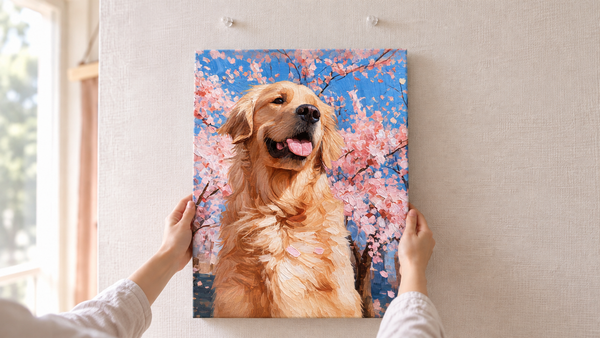
Transform photos of people or pets into soft, illustration-style images. Recommended if you want something more artistic than a regular photo.
We recommend Illustration output 🌈

 Original photo
Illustration output
Original photo
Illustration output
If you can't decide, our staff's top pick is Illustration output!
It automatically adjusts your photo to colors that suit a Paint Yours canvas, so color differences and the features of your subject are easier to see.
Expressions on people and pets look softer, and features like the eyes, mouth, and fur are easier to capture. It's also recommended for black dogs and cats, whose facial features can blend into their fur in photos 🐶🐱
Choose Photo output if you want to keep the colors and feel of the original photo, or Illustration output for a softer, more artistic finish.