Getting Started4 / 6
Number of Colors
Read Other Guides
With Paint Yours, you can choose from 24, 36, or 48 colors.
The difference between them is how much of the fine detail in your image can be reproduced.
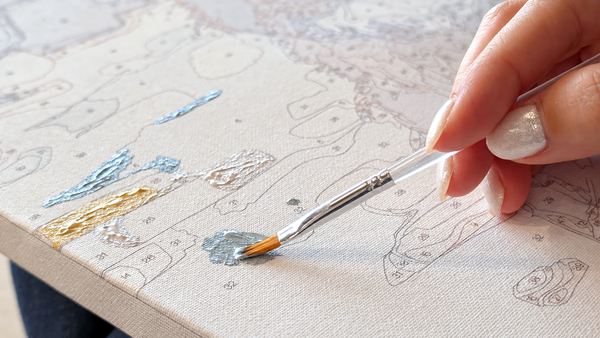
For the Custom Paint by Numbers Kit, we extract the colors from the image you upload and build a palette with the number of colors you choose. Based on that palette, the image is divided into sections by color, and each section is given a number to create your design.
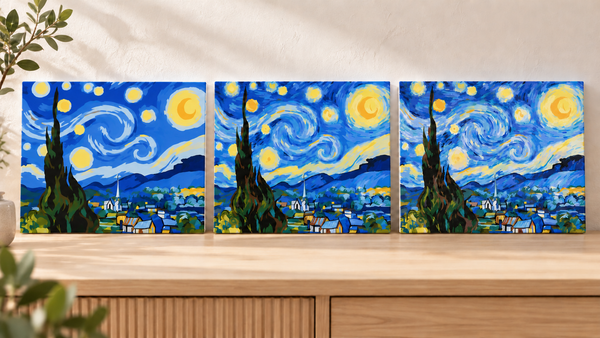
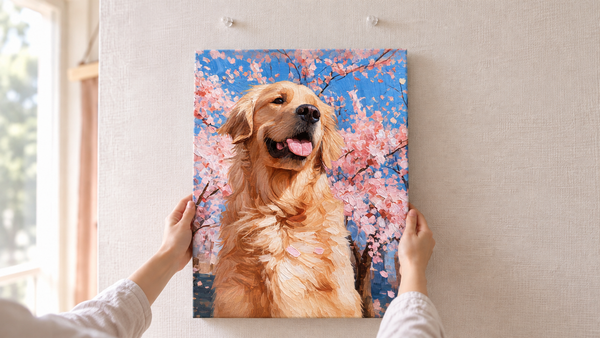
The more colors you choose, the better subtle differences in light and shadow, fur, and skin tones come through, and the closer the result will be to your uploaded image 📸
24 colors | Easy to paint, with a simple finish
With 24 colors, each color covers a relatively large area and there are fewer tiny sections, making it easy to work on for young children and anyone who isn't fond of detailed work 🔰
It captures the main features of your photo for a simple finish.
Recommended for:
- Anyone trying Paint Yours for the first time
- Those who prefer easy painting over detailed work
- Those who love a simple, soft look
36 colors | A great balance of ease and detail
36 colors captures shades and shadows in more detail than 24 colors, without the sections getting as small as with 48 colors. It's a well-balanced choice ✨
Recommended for:
- Those who want both easy painting and a true-to-photo look
- Those who want to paint a photo of people or pets
- Those who want a moderately challenging project
48 colors | Closer to your photo, down to the details
48 colors uses the most colors and can show subtle color changes, giving you the most authentic finish of the three 🖼️
It handles facial expressions, pet fur, and delicate gradations like sunsets and the sea beautifully. On the other hand, there are more small sections, so it takes a bit more patience. That makes finishing it all the more rewarding!
Recommended for:
- Those who want a finish as close as possible to their uploaded image
- Those who want to carefully capture expressions, fur, and light and shadow
- Those who want to lose themselves in painting
- Those who want to use landscapes or photos with lots of color variation
Your uploaded image makes the biggest difference ⚠️
How small the sections are and how the canvas design turns out also depend heavily on the colors in your uploaded image and how much fine detail it contains.
For example, even if you choose 24 colors, an image with fine details such as a lawn may result in very small sections.
On the other hand, even if you choose 48 colors, areas with little color variation, like a clear blue sky or a plain wall, may become large single-color sections.
If you want to avoid sections that are too small, but don't want a flat finish made up of only large sections, we recommend using Illustration output in our free image editing tool, Paint Yours Studio. It adds colors and artistic touches that a photo doesn't have, while preparing your image so it's easy to paint with Paint Yours.
24 colors isn't always easy, and 48 colors isn't always detailed. Rather than looking at the number of colors alone, think about how you'd like to spend your painting time and what kind of mood you want the finished piece to have, then choose the color count that suits you best 😊